I keep running into teachers who have this exact problem: a Quizlet library built up over years, and zero interest in retyping any of it by hand into Blooket. Fair. Nobody wants to spend their Sunday manually copying eighty vocab terms.
Turns out you don’t have to. Blooket built an import tool for this specific reason, and most people don’t even know it exists. Here’s how it actually works, plus the parts that trip people up.
Quick gut check — is this even worth doing?
If your set is tiny, just type it in. Genuinely faster than reading this article. But once you’re past twenty or thirty terms — anything you spent real time building — the import tool starts paying for itself. Export as text, paste into Blooket, done. The parsing happens automatically.
One wrinkle to know about before you start: pulling in a set someone else made, and it turns out they used a Quizlet Plus feature to build it? You may need Plus yourself to get it out. Not the end of the world, but worth knowing early.
1. Open the Create page
Log into Blooket, hit Create. Nothing special yet — same spot as any other set.
2. Choose Quizlet Import
Name your set, throw in a description, and find Quizlet Import among the creation options. Click Create Your Set.
If you’re not starting fresh — say you’ve already got a Blooket set and just want to bolt on more Quizlet questions — go to that set’s edit page instead. Same option lives there.
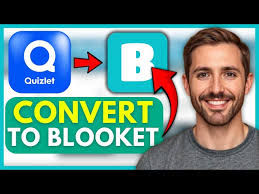
3. Find your Quizlet set
Two routes: Your Quizlet pulls from your own account, Search Quizlet digs up public sets from other people. Either one pops open a new tab, and Quizlet might ask you to log in if you haven’t already.
Find the set, come back to Blooket, click Next Step.
4. Pull the export from Quizlet
In the actual Quizlet set now — click the three dots near the owner’s name, pick Export.
Don’t see that option? The set’s probably not in your library yet. Click Save and edit to copy it over, and export should show up after.
And if “Save and edit” is also greyed out — that’s the Quizlet Plus thing I mentioned. The set was built with a Plus-only feature, and there’s no clean workaround besides having Plus yourself or hunting down a version of the set that isn’t locked.
5. Match the export format
Leave the export settings on their defaults:
- Tab separates term from definition
- New line separates each row
Don’t touch these. This is the format Blooket’s importer is built to read. Also — if there are true/false questions in the mix, uncheck Random Order first. Left checked, those questions tend to come through a little scrambled.
Click Copy text.
6. Paste it back into Blooket
Jump to your Blooket tab, find the text box, paste. Blooket picks apart the tabs and line breaks and turns them into individual questions on its own.
Give it a once-over before saving. Stray characters or an extra line break buried in the original set can occasionally throw off one or two questions — easier to fix now than after you’ve already saved and moved on.

7. Clean up, then save
You land in the editor with everything filled in. From here, go through and:
- Add multiple-choice answers if the original was just term/definition pairs
- Change question types where it makes sense
- Toss in images
- Fix whatever pasted in looking odd
- Reorder or cut anything you don’t need
Hit save. From this point it’s just a Blooket set like any other — host it, assign it, whatever.
If something breaks
No export button anywhere. Set’s not yours yet — copy it first with “Save and edit.”
Everything’s jumbled after pasting. Nine times out of ten, the export format was wrong. Go back and check tab/new-line.
True/false questions look off. Random Order was probably still on. Re-export without it.
Won’t import at all. Cut the set down to a small chunk and export just that — usually one weird entry is the whole problem, and it’s easier to spot in a smaller sample.
Bottom line
The hard part was already done back when you built the Quizlet set. This is just export, paste, tidy — a few minutes, not an afternoon of retyping.