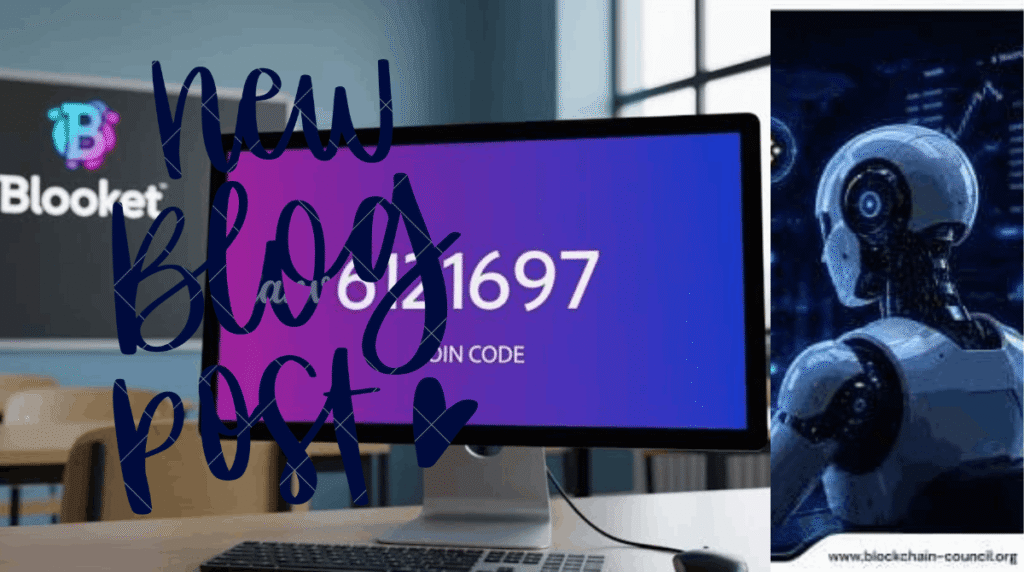
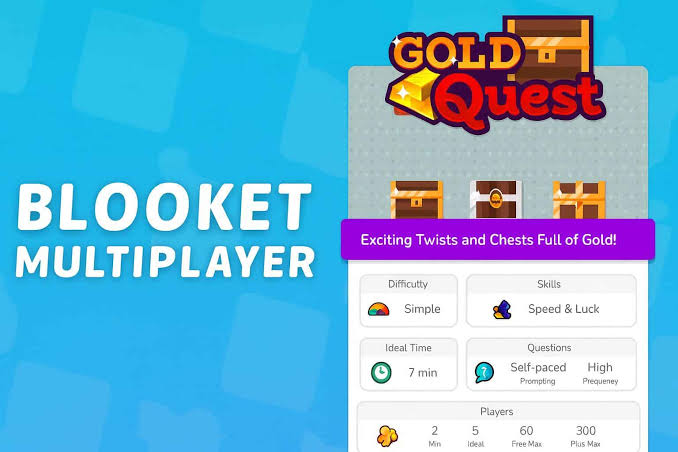
There’s a very specific kind of panic that hits when you’re mid-lesson, the whole class is refreshed and ready to smash buttons for Gold Quest, and the join code just… doesn’t work. Kids start yelling out variations of “it says room not found,” someone’s convinced they’re doing it wrong, and you’ve got maybe ninety seconds before the energy in the room turns into chaos instead of a game.
I’ve had this happen enough times to know it’s seldom actually broken. It’s usually one small, boring thing. Here’s what’s actually going on when a Blooket code won’t cooperate, and how to get back on track without losing the room.
Codes aren’t permanent — that’s the root of most of this
Here’s the thing people forget: a join code isn’t attached to your account, your class, or your favorite game set. It’s generated the moment you hit “Host,” and it dies the moment that session ends. That’s it. Close the tab, hit refresh, let it sit too long — the code you were just using is now pointing at nothing.
Once you internalize that, a lot of the “why won’t this work” confusion clears up fast.
Reason #1: Someone just typed it wrong
Not glamorous, but it’s the most common issue by a mile. Blooket codes mash together letters and numbers, and from the back of a classroom, a capital O and a zero look basically identical. Same story with a lowercase L and the number 1. Add in a kid squinting at a projector or mishearing you say the code out loud, and you’ve got a typo nobody even realizes they made.
Fix: skip the verbal relay race. Have people look straight at the host’s screen, or better yet, drop the code as text somewhere everyone can copy it from directly.
Reason #2: The game already ended, and nobody noticed
This one gets teachers constantly. You start the game, then step away for two seconds — answer a question, pull up something else on the projector, whatever — and if your screen refreshes or the tab closes, that session is done. The code is now a dead end, even though it worked perfectly a minute ago.
If a code was fine and then suddenly isn’t, this is almost always the culprit. There’s no fixing an expired code by trying it again harder. The host just needs to relaunch and hand out the new one.
Reason #3: It’s a leftover code from before
I’ve watched this happen with screenshots specifically. Someone snaps a photo of the join screen “just in case,” then tries to reuse it days or weeks later. It will not work. Codes are single-use, tied to one live session only, no exceptions. If a code is coming from an old text thread, a saved photo, or a bookmark, treat it as expired before you even try it.
Reason #4: The wifi is the actual problem
Sometimes the code itself is completely fine, and the real issue is the connection between the device and Blooket’s servers choking, usually because thirty devices just tried to hit the same school network at the exact same moment.
Quick gut-check: try loading literally any other website. If everything’s crawling, that’s your answer — it’s not Blooket, it’s the network. Hopping onto a hotspot or personal data for a minute is often enough to get unstuck.
Reason #5: The browser needs a reset
Old browser versions, a cache that’s never been cleared, a random extension quietly interfering — any of these can make the join page glitch, freeze up, or just refuse to take input. Shared school devices are especially prone to this since they’re used by a dozen different students a day and rarely get a clean restart.
If the page looks off, refresh first. Still stuck? Clear the cache, or just switch browsers entirely. On phones, fully closing the app (not just backgrounding it) and reopening usually does the trick.
Reason #6: Blooket itself is having an off moment
Rare, but not impossible. Like any platform, Blooket occasionally runs into server hiccups or maintenance windows, and when that happens, codes can fail across the board no matter how carefully anyone’s typing. This tends to line up with peak school hours, when a lot of classrooms are hammering the servers at once.
If you’ve ruled out everything else — code’s right, session’s live, wifi’s fine — this is usually what’s left. Checking Blooket’s social channels can confirm whether it’s a wider outage and not just your one unlucky classroom.
The troubleshooting order that actually saves time
When you’re stuck and the clock’s ticking, don’t just start randomly refreshing things. Work through it in this order:
- Read the code straight off the host’s screen — not from memory, not from something someone shouted.
- Double check the host’s game is actually still running.
- Refresh the join page once.
- Test if your internet is working at all by loading something else.
- Try a different browser or clear the cache.
- Have the host just restart the game and share a fresh code.
- If none of that works, wait a few minutes — it might be on Blooket’s end.
Honestly, most of the time you’re fixed by step two or three. The rest of the list is just backup.
If you’re hosting, a few habits prevent this entirely
- Keep the code up on screen the whole time people are joining — don’t flash it once and move on.
- Resist the urge to touch your own screen (refreshing, switching tabs) once the lobby’s filling up.
- Type the code somewhere visible instead of relying on it being read aloud.
- Give the lobby a minute before starting so latecomers aren’t racing an expiring window.
- Have a plan for restarting fast if something does go wrong, so you’re not troubleshooting live in front of a room full of kids waiting to play.
Bottom line
A dead join code is seldom a mystery once you know what to look for. It’s a typo, an ended session nobody noticed, a stale screenshot, shaky wifi, or a browser that needs a nudge. Actual server outages happen, but they’re the rare exception, not the first thing to assume. Run through the list above, and you’ll be back in the game in under a minute — no scrambling required.
Disclaimer:
This article is an independent troubleshooting guide and is not affiliated with, endorsed by, or officially connected to Blooket or its parent company. “Blooket” is a trademark of its respective owner. The tips here are based on common user experiences and general troubleshooting practices, and may not resolve every issue.