
Nobody notices Blooket when it works. Everyone notices when it doesn’t.
Maybe you’re a teacher with thirty students staring at a spinning circle. Maybe you’re a student who just wants to join your friend’s game, and the login page keeps flinging you back to the start. Either way, the problem feels huge in the moment and turns out to be tiny about nine times in ten.
This guide covers the usual suspects for login failures and games that refuse to load. Start at the top and work down. The early fixes are the fastest.
Step Zero: Figure Out Whose Problem It Is
Before you clear anything or reset anything, answer one question: is the trouble on your end or Blooket’s?
Switch your phone off Wi-Fi and open Blooket on mobile data.
- Works on the phone? Your computer, browser, or network is the culprit. Keep reading.
- Broken there too? Blooket is likely having a bad moment. Stop poking at settings, wait ten to fifteen minutes, and try again.
This takes thirty seconds and can save you an hour of fixing something that was never broken.
Login Failures
The Google trap
This catches more people than anything else. If you created your account with the “Sign in with Google” button, there is no Blooket password. Typing your email into the regular form will fail every time, no matter how carefully you type.
Use the Google button instead. Can’t remember which route you took? Try Google first, then the email form.
Typos and lookalike accounts
Check for a misspelled email, a stray space, or caps lock. Also think about which address you used. Plenty of people have a school email and a personal one, and Blooket treats them as two separate accounts. Teachers who’ve switched schools run into this constantly.
The password you can’t quite remember
Resist the urge to guess ten times. Use the reset link, choose a new password, and store it in a password manager so you don’t repeat this exercise next semester.
The missing verification email
New accounts often need to confirm an email address. If nothing shows up, look in spam and promotions. School email systems are especially strict and may hold unfamiliar messages for a long time. If a school address isn’t working, try signing up with a personal one.
When the Login Page Keeps Looping
You enter your details, the page flashes, and you’re back at the start with no error message. That pattern usually points to stored browser data.
Browsers save small pieces of websites so pages load faster. Occasionally that saved data goes stale, and the site chokes on it. Here’s how to clear it for Blooket only:
- Open your browser settings.
- Search for “cookies” or “site data.”
- Find blooket.com and delete what’s saved.
- Close the tab completely, reopen it, and log in again.
If you’d like to confirm the diagnosis first, open a private or incognito window and try there. Private windows start with a clean slate, so a successful login confirms it.
Extensions: The Quiet Troublemakers
Ad blockers, privacy tools, script blockers, and VPN extensions work by stopping parts of a page from loading. That’s their purpose. The problem is that they sometimes stop something Blooket needs, and you’re left with a blank screen, a button that does nothing, or an animation that never ends.
Private windows usually switch extensions off, so the same test applies. If Blooket works in private mode, go back to your regular browser and disable extensions one at a time. When the problem disappears, you’ve found the one responsible. Pause it for Blooket or add the site to its exceptions list.
Games That Won’t Load
It helps to separate two cases: you’re trying to join, or you’re trying to host.
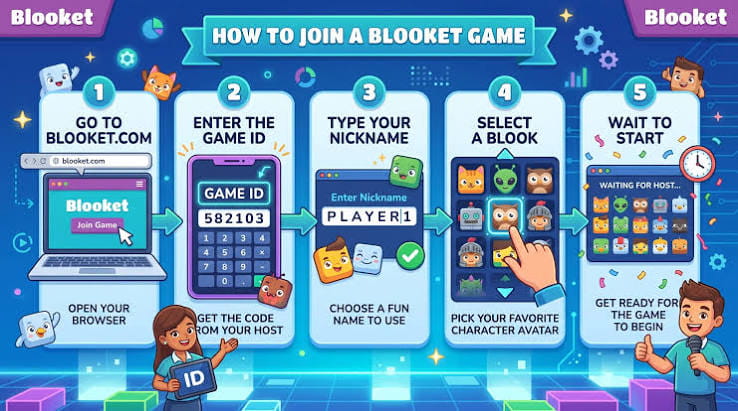
Joining a game
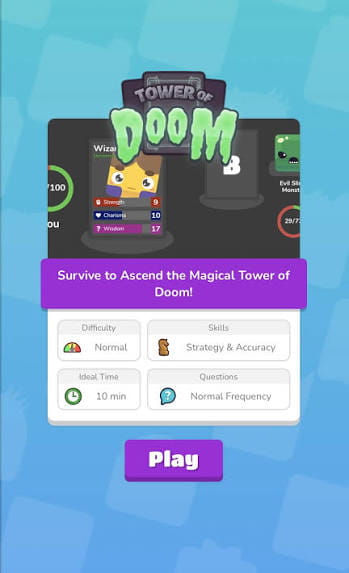
- Check the code again. Digits get swapped easily. A wrong code either fails or lands you in someone else’s lobby.
- Use the right page. Game codes go on the join page, not the login screen.
- Ask whether the game ended. Codes stop working once the host closes the lobby.
- Ask whether it’s locked. Some hosts shut the doors after the game begins, which blocks latecomers.
Hosting a game
- Refresh and retry. Sometimes the first attempt just doesn’t connect.
- Try another mode. If one mode stalls but a different one runs, the trouble is that mode, not your internet.
- Inspect your question set. An empty set, or one that’s still saving, can stop a game from starting.
- Verify your plan. If you’re using a paid feature, make sure your subscription is still active.
Works at Home, Fails at School
If this sounds familiar, you’re in good company. Blooket runs perfectly on your home Wi-Fi, then falls apart in the classroom.
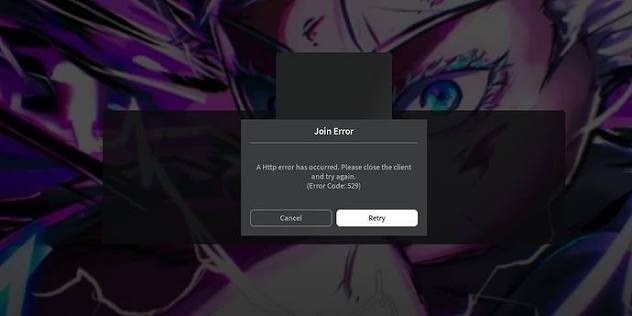
School networks use filters and firewalls to manage what students can reach. Those same protections can interfere with the live connection that keeps a host and players in sync. The signs are endless loading, students dropping out mid-round, or pages that never finish drawing.
Run the phone test again. If the game works on mobile data but not school Wi-Fi, you’ve found the cause, and the fix belongs to your IT department. Be specific in your request. “Blooket is broken” tends to sit in the queue. Something like “Blooket’s live game connection appears to be blocked on our network, but it works on mobile data” gives them somewhere to start.
When the Wi-Fi Is Just Overwhelmed
Sometimes nothing is blocked. The network is simply tired. Thirty students joining at once through a single access point can swamp it, and the result looks a lot like a Blooket bug: lag, freezing, random disconnects.
What helps:
- Sit closer to the router.
- Close extra tabs and background downloads.
- Let a few students switch to mobile data.
- Split the class into two smaller games.
- Restart the router. It sounds like a joke, but it works more often than it should.
Switch Browsers, Switch Devices
If you’ve tried everything above, change your setup. Blooket generally works well on up-to-date versions of Chrome, Firefox, Edge, and Safari, but any browser can have its own quirks. An outdated version is a common offender, so update while you’re there.
Switching devices tells you something too:
- Fails on the school Chromebook but works on your phone? Look at the device or network.
- Fails everywhere? Look at your account, or at Blooket itself.
The Panic Checklist
For when a class is waiting and you need a plan:
- Test on another device or network.
- Refresh the page.
- Open a private window.
- Clear Blooket’s cookies and cache.
- Turn off extensions.
- Try a different browser.
- Reset your password if login is the problem.
- Ask IT about the school network.
Most problems are solved by step four or five.
Still Stuck? Contact Support
If you’ve worked through everything and the problem remains, contact Blooket’s support team. Make it easy for them by including:
- what you were trying to do,
- the exact wording of any error message,
- your browser and device,
- whether it happens on other networks.
A screenshot helps a lot and can save you a few rounds of email.
The Takeaway
Blooket problems feel dramatic, but the causes are usually small: the wrong sign-in method, stale browser data, an overeager extension, or a network that’s blocking or struggling. Work through the checklist in order, and you’ll usually be back in the game within a few minutes.
disclaimer
Blooket.blog is an independent website and is not affiliated with, endorsed by, or sponsored by Blooket, Inc. All product names and trademarks belong to their respective owners. The troubleshooting steps in this article are shared for general informational purposes and may not resolve every issue

Pingback: blooket.blog Blooket Game Modes for Math, Vocabulary, and History