
Blooket freezing on you right before a game is one of those problems that feels bigger than it is. You’ve got the PIN, you’re ready, and the page just… sits there. Doesn’t load, doesn’t error out, just stares back at you. Annoying, sure. But almost always fixable in under five minutes once you know which of a handful of things is actually going on.
No fluff — here’s the actual troubleshooting order that works.
Is Blooket even up right now?
Skip this and you could waste twenty minutes fixing a problem that isn’t yours. Blooket’s servers take a real beating during the school day, especially early afternoon when a big chunk of classrooms nationwide are all running games at once. When that happens, the Play page can hang for everyone, not just you.
Load a random other website first. Works? Your connection’s fine, so the problem is on Blooket’s side. A quick search for “Blooket down” or a check on DownDetector will confirm it fast. If it’s them, you wait. That’s it, that’s the fix.
Clear the cache before anything else
This is the boring one, and it’s also the one that fixes the most cases. Browsers keep old copies of sites around to load them faster next time. Trouble is, when Blooket updates something, that old saved copy can clash with the new version, and the Play page just quietly stops working — no error message, nothing, just dead.
Takes under a minute:
- Browser settings → clear browsing data
- Cached files and cookies, checked
- “All time,” not the default hour
- Fully close the browser, then reopen it
Worked fine last week, broken now, nothing else changed? This is almost certainly why.
Blame your ad blocker
Sounds unrelated, isn’t. Extensions like uBlock Origin or AdBlock Plus exist to kill scripts they think are tracking or ads, and Blooket’s own scripts occasionally get caught in the crossfire by mistake. VPN extensions do this too sometimes.
Test it in ten seconds: open an incognito window, which disables most extensions by default, and try loading Blooket there. Loads fine in incognito but not your regular window? There’s your answer. Whitelist Blooket.com in the extension, or just turn it off while you play.
Your browser might just be too old
Blooket wants a modern browser and gets cranky without one. Old Safari, ancient Internet Explorer — these are common problem spots. Chrome, Firefox, and Edge are the safe picks, but even those need to actually be current, not just “installed at some point.”
School Wi-Fi filters are the classroom-specific culprit
Works at home, breaks at school? This is almost always why. Filtering tools like GoGuardian, Securly, and Lightspeed sometimes block the newer subdomains Blooket uses for live games, even while letting the main site through fine — so it looks like Blooket’s broken when really it’s just partially blocked.
- Ask IT to whitelist Blooket.com and its subdomains
- Test on a phone hotspot to confirm it’s the network
- Try your own device on cellular data if you’re the teacher
You usually can’t fix this one solo. Someone with access to the filter settings has to do it.
Restart everything, actually
I know, I know — everyone’s sick of hearing this. But a device that hasn’t restarted in a week starts behaving oddly across the board, Blooket included. Full shutdown, ten seconds, back on. Router too if you can reach it: unplug, thirty seconds, plug back in. School laptops especially almost never get a real restart.
Mobile? Use the app, skip the browser
Phone and tablet browsers get suspended the moment you switch apps or lock the screen, killing your connection instantly. If there’s a Blooket app for your device, use that instead — it reconnects far more reliably than a browser tab that just got frozen mid-game.
Maybe there’s just no game to join
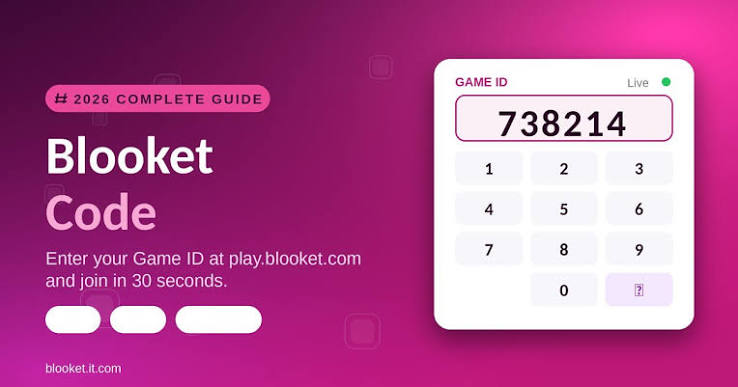
Not everything is a bug. If the host hasn’t started the game yet, or it already ended, the page can sit there looking broken when it’s really just waiting on nothing. Check with the host that it’s live, and double-check the PIN — easy to misread a digit when you’re rushing.
Nothing worked? Contact support
At this point it might be account-specific or an actual bug, not something fixable from your end. Tell Blooket support your browser, device, and roughly when it started — specifics get you a real fix faster than “it’s broken.”
Most people never get this far, though. Outage check, cache clear, rule out the school filter — that trio covers almost every case.
disclaimer:
bloket.blog is an independent resource and is not affiliated with, endorsed by, or sponsored by Blooket or its creators. All product names, logos, and trademarks referenced are the property of their respective owners.

